
At peak hours, the question servers hear most is usually not "can I order?" but "is our food being made yet?", "how many drinks has our table ordered?", "what's the total so far?". Each question sends someone running to the kitchen or the counter to check, while other tables are waiting. If the restaurant already has QR ordering codes on its tables, guests can check most of these themselves: the same page they just ordered from also holds their table's order. This article covers what guests see there, how item statuses are shown, how to order more, and what the restaurant needs to do so guests actually use it.
What guests see on their table's order page
| Part of the page | What guests see | Question it removes |
|---|---|---|
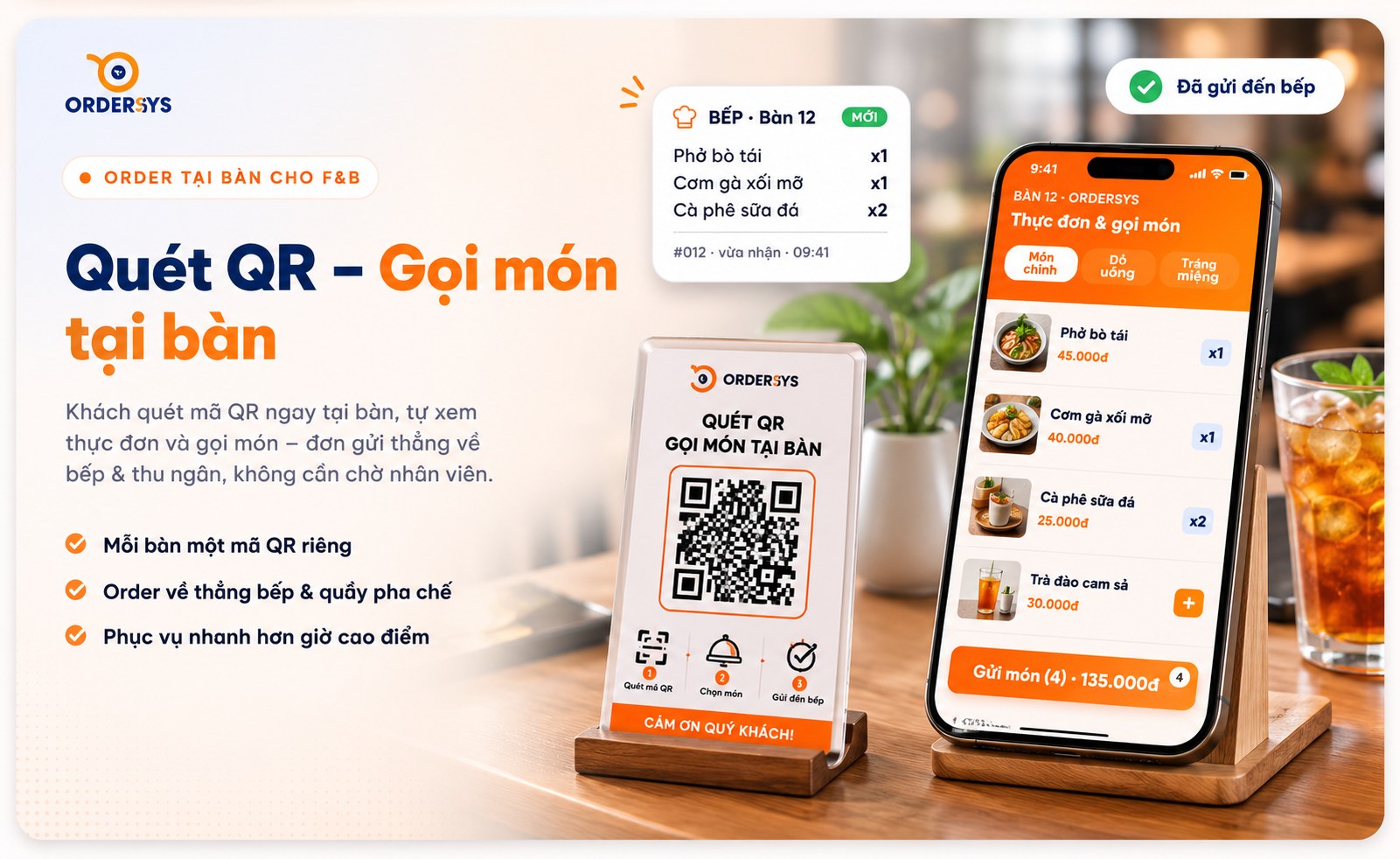
| Item list | Item names, quantities, options and add-ons, notes sent; free gift items clearly marked | "How many drinks has our table ordered?" |
| Status of each item | Which step each item is at; items the kitchen marks as out of ingredients shown in red | "Is my dish being made yet?" |
| Money | Subtotal with the number of items, discount, total | "What's the total so far?" |
| Order information | Time ordered, paid or not yet paid, whether the restaurant has confirmed the order | "Has the restaurant received my order?" |
This is the table's shared order, not only the items guests tapped themselves. Items a server ordered for them or the cashier added at the counter are in the same list, so guests only need to look in one place.
How item statuses are shown
How detailed the status is depends on how the restaurant sets up its kitchen. If the restaurant only prints kitchen tickets, guests see each item as "Waiting to notify kitchen" or "Kitchen notified". If the restaurant updates items on a kitchen display screen, guests also see "Waiting to prepare" and "Preparation done". If the restaurant turns on the QR order confirmation step, a newly sent order shows as "not yet confirmed" until the cashier approves it, so guests know the order has reached the restaurant rather than being lost.
The key point is that the status is only correct when the kitchen taps correctly. If the kitchen finishes a dish without tapping, the guest's page stays at the old step, guests go back to asking, and next time they stop trusting the page. Once a kitchen display is set up, keep the habit of tapping "done" as soon as a dish goes out.
Ordering more and calling staff from the same page
- Extra orders go into the table's shared order. After ordering, guests tap continue ordering to choose more. New items are added to the table's order, and the kitchen only receives the newly ordered part instead of reprinting the whole order.
- Guests are notified when the cashier adds items for the table. When the cashier adds items for a table using QR, the guest's page shows the notice "The cashier is adding items to your table", so guests are not surprised to see unfamiliar items in the list.
- Call service button. For things not on the menu such as more ice, napkins or clearing the table, guests tap the button and the cashier and staff receive a notification with the table name and time of the call.
- Locked while paying. While the cashier is processing payment for the order, guests cannot make changes on the page, which avoids extra items slipping in just as the bill is printed.
Three things to make guests actually use this page
- Say one sentence at the first order. "You can check which dishes are being made in the code on your table." Most guests scan the code to order and then close it, without knowing there is an order page to check.
- Keep kitchen statuses clean. As mentioned above, if the kitchen taps late the page is wrong and guests come back to ask staff. Remind the kitchen once at the start of the shift, and at the end of the shift check which items are still stuck at an old step.
- Make clear that the subtotal is a subtotal. The figure on the page is the table's running subtotal up to that moment; the final bill is settled by the cashier at payment. Seeing the subtotal beforehand means fewer surprises when the bill arrives, but it does not replace the bill.
How Ordersys helps
In Ordersys ordering software, guests scan the QR code at the table to order, review the table's order, the status of each item, the subtotal and payment status; extra orders go into the table's shared order and the kitchen only receives the new part; tapping call service notifies the cashier and staff. Restaurants can try it free for 7 days. For tables that order in many rounds, see how to keep them on one bill in the article on combining multiple rounds of orders into one table bill, and for guests who tap the wrong dish via QR, read guests ordering the wrong dish via QR: confirming and cancelling.
Ordersys has editions for restaurants and for retail stores: checkout, stock, reports and e-invoices, with on-site setup and training.
Other news
Sales software for household businesses that fits the new rules
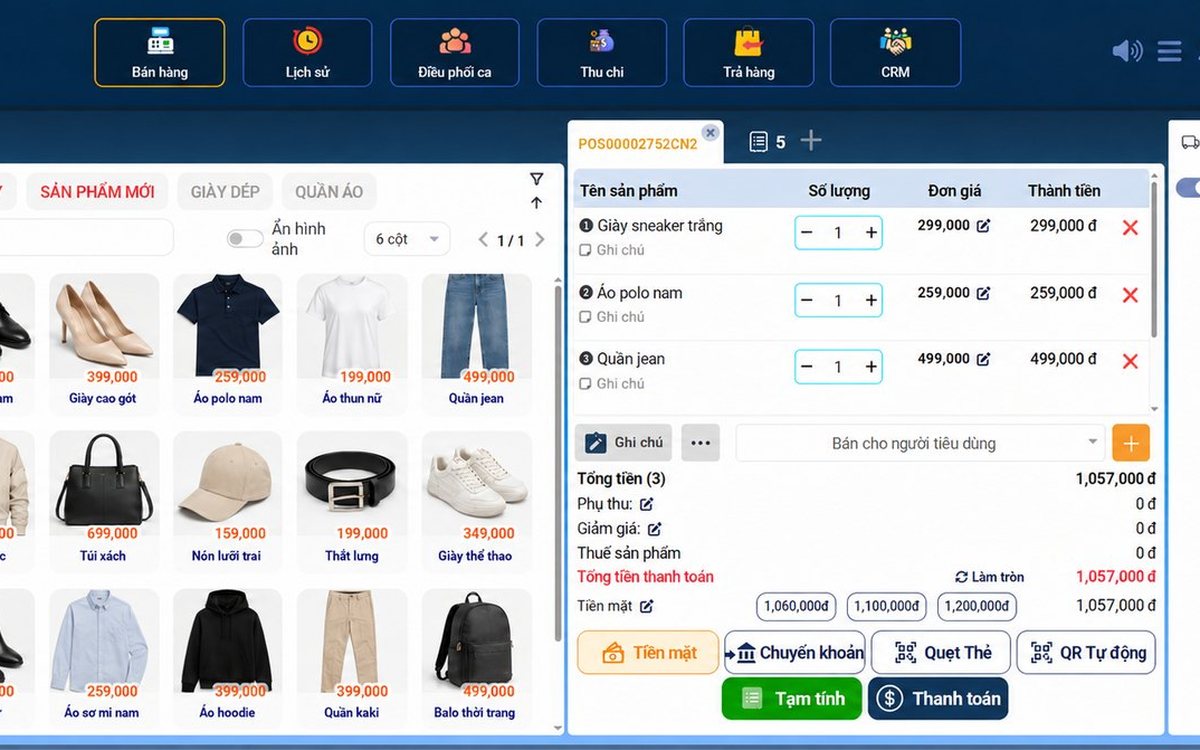
From 2026 household businesses no longer pay presumptive tax and declare based on actual revenue; stores with revenue of 1 billion VND/year or more selling directly to consumers must use e-invoices generated from cash registers. This guide summarises the regulatory milestones that affect retail stores and what sales software must do: record every order, issue e-invoices, report by period, keep purchase records and track debts.
Scan a QR code to order at the table: guests order for themselves, the restaurant needs fewer staff
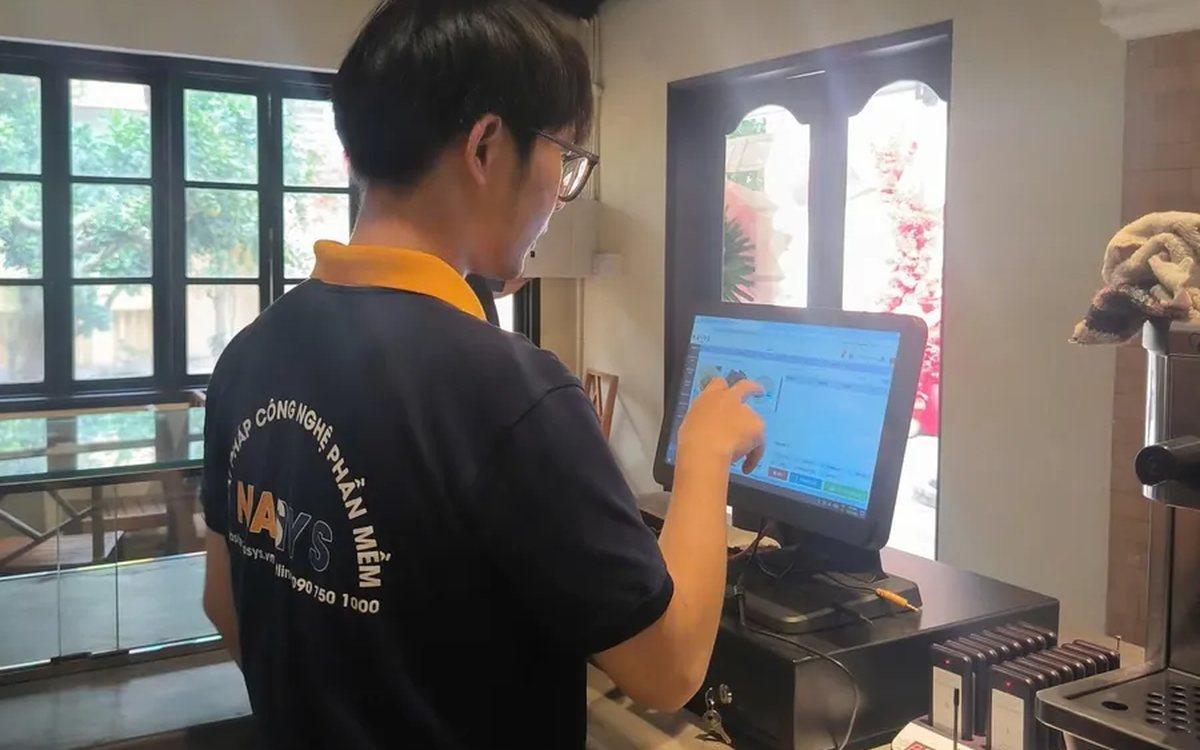
When guests scan a QR code to order at the table, handing out menus, taking orders, running tickets to the kitchen and answering "where is our food?" move to the guest. This guide separates what guests do themselves, what staff still have to do, how to rearrange shifts by table zone, and where things slip when the restaurant runs with fewer people.
Ordering software for wedding banquet restaurants: serving many tables at once without the bill going wrong
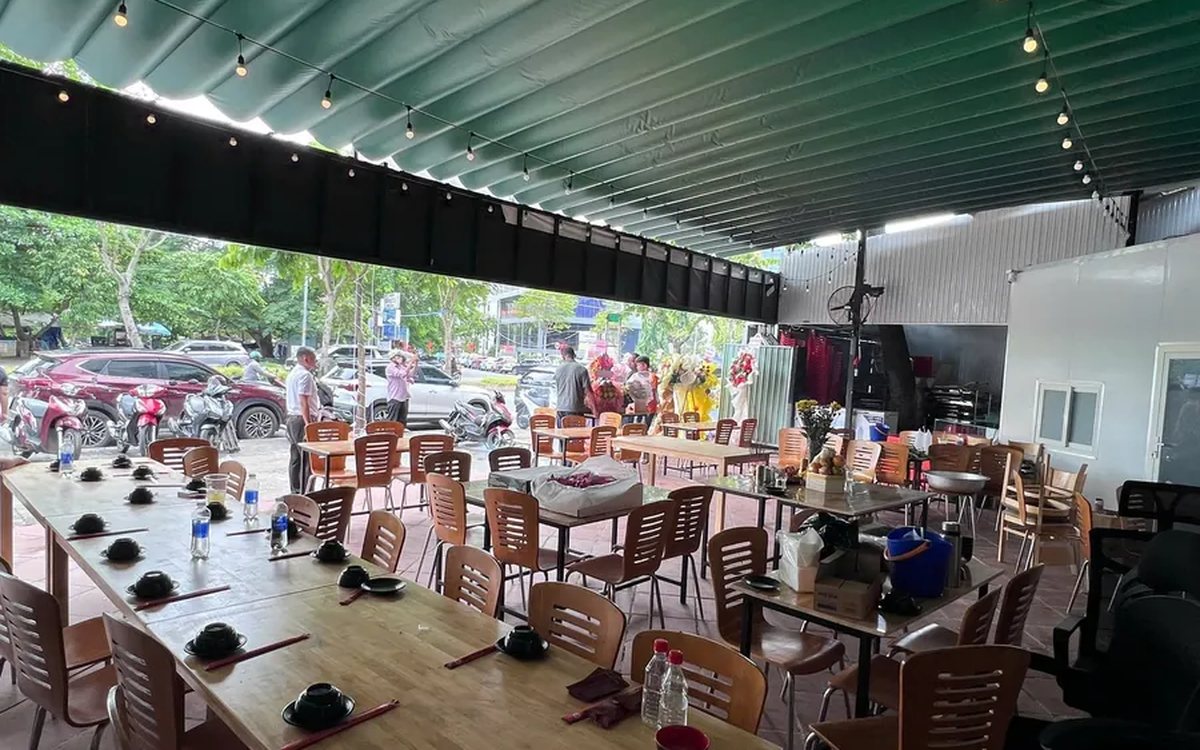
A thirty-table wedding banquet usually goes wrong on the extras: drinks added mid-party, tables set up at the last minute, dishes sent to the kitchen twice, deposits remembered by word of mouth. This guide puts the whole banquet into one order from a multi-table booking or by merging tables, takes extra orders by phone, sends only new items to the kitchen, and settles with the host using a provisional bill, surcharges and automatic deposit deduction.
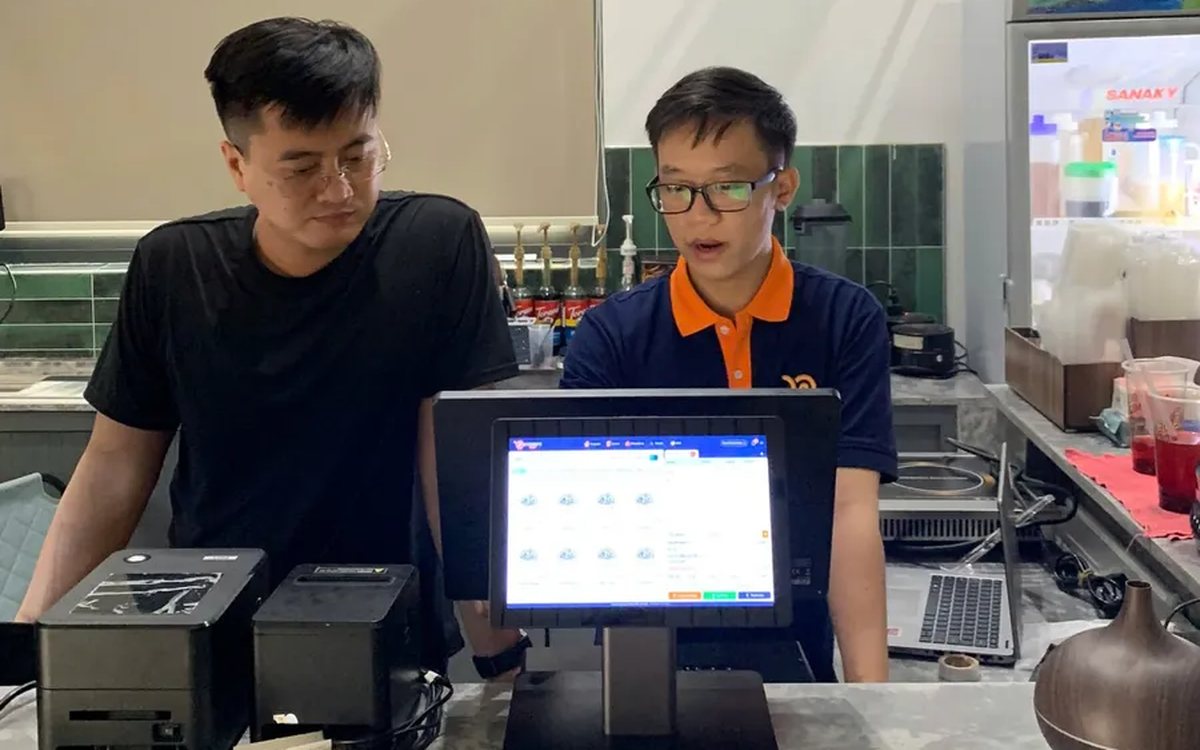
Complete coffee shop management software: how ordering, checkout, inventory and reports connect
Complete coffee shop management software is not a long feature list but ordering, checkout, inventory and reports working together: ring up one cup and the money goes into the right shift, ingredients are deducted by recipe and the end-of-day report updates itself. The article follows one cup through four stages, shows four common break points and the order to switch things on.
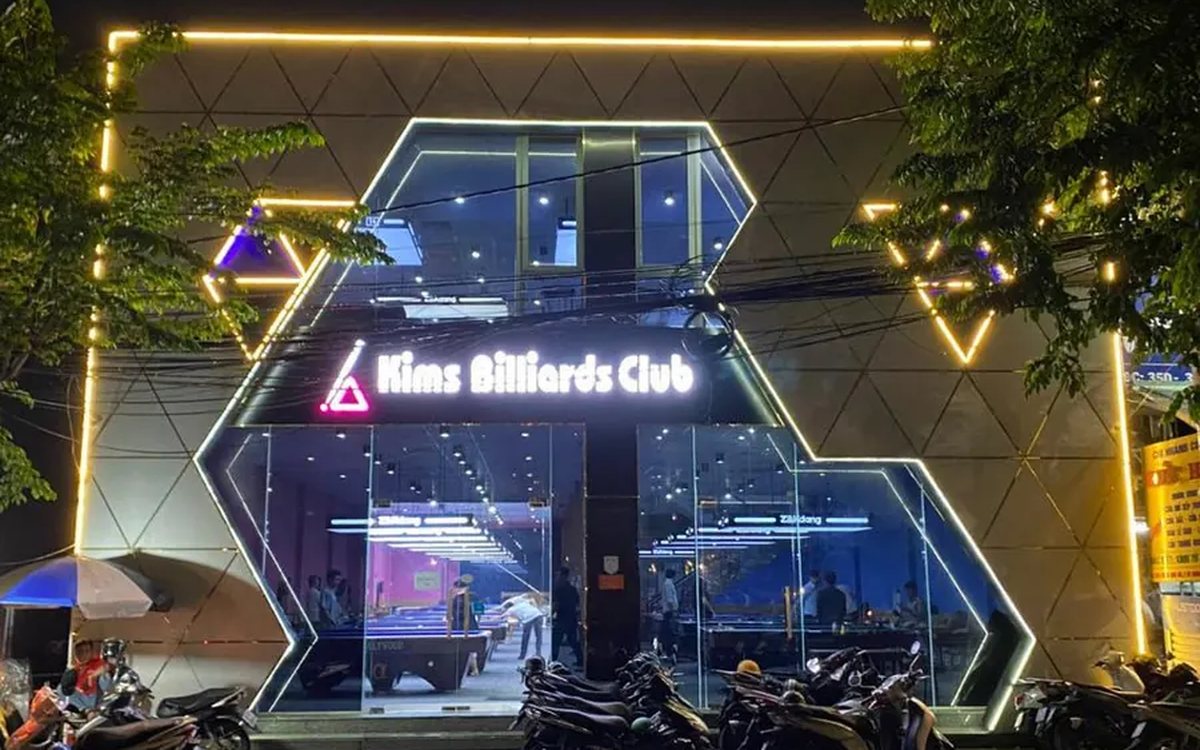
Billiards management software for a small new club: what to set up before opening day
For a new billiards club with five to ten tables, where the owner works the counter and starts the clocks, the software needs to do a few things right: set up tables, hourly rates, the menu and QR codes before opening; let players order drinks themselves and have table lights follow playing time; use camera highlights to get the club known; and after the first month read reports by table, debts and shift close.
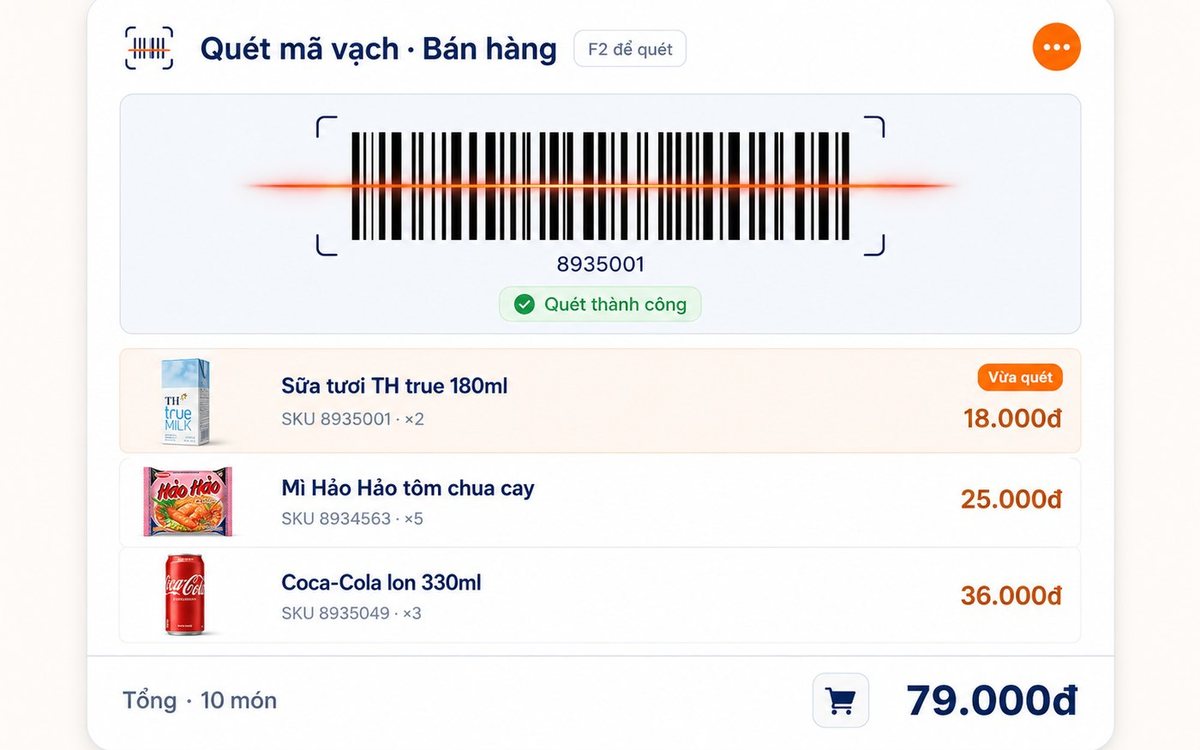
Retail order management software: counter sales and online orders in one place
Counter orders, phone and Zalo orders, and orders from the store's web shop all go into one order book in Ordersys. Each online order moves through five clear statuses, delivery requires the address, delivery time and delivery person, customers track their own order, and there is no adding up two places at the end of the day.

Spa and hair removal appointment software with no double bookings
Hair removal sessions are short, tightly packed and crowded into one machine room, so they clash easily. Each Ordersys appointment records the time, duration, room/bed and therapist; on save the software checks for room clashes, therapist clashes and therapists busy in the spa, adds bed turnover time, and shows exactly which booking is holding the slot.
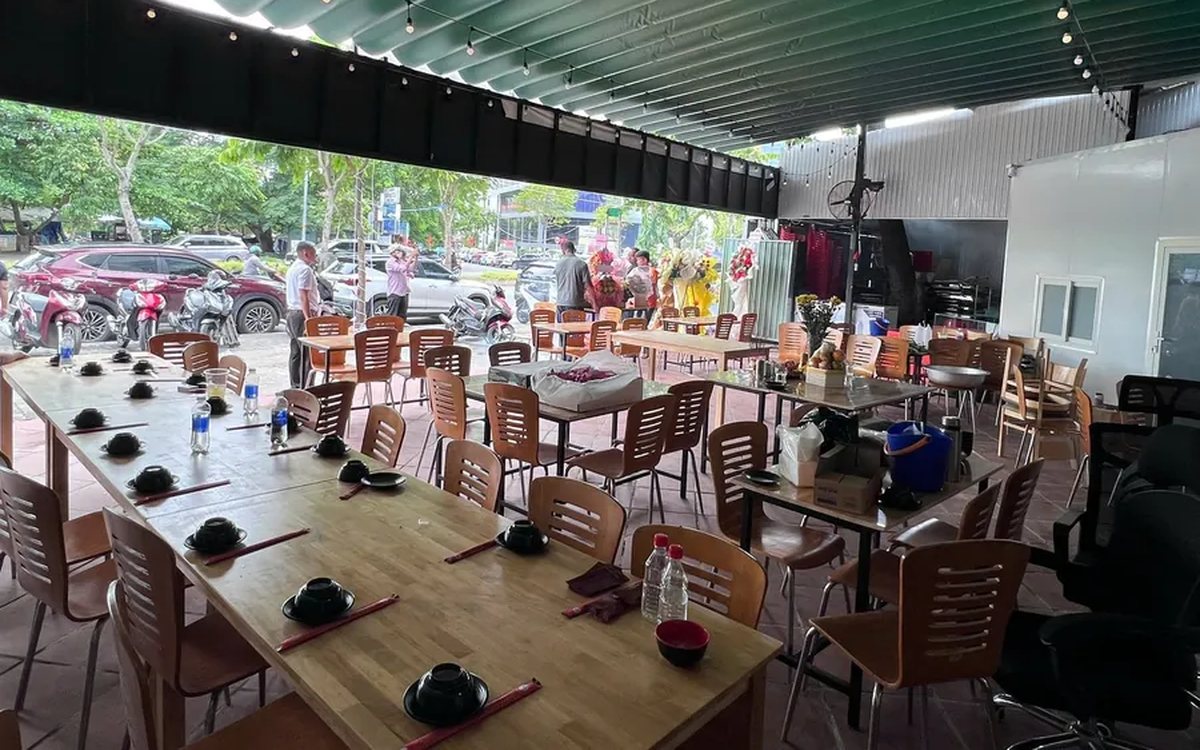
QR table ordering software for restaurants and eateries
One round of QR ordering in Ordersys goes through five steps: the guest scans the code on the table, picks dishes with options and notes, sends the order (with or without a confirmation step), the kitchen and bar receive it, and the guest reopens the page to check the order and order more. Plus a list of what to set up before putting codes on tables.
Ordersys or KiotViet? A Straight Comparison to Choose Right
An honest Ordersys vs KiotViet comparison by real needs: retail, services, billiards, QR ordering, automatic payment — choose right, not the wrong fit.